Discord Setup
Create the Discord application, configure the callback correctly, and invite the bot so the dashboard can attach your server.
Step 1: Create The Discord Application
- Open the Discord Developer Portal.
- Create a new application.
- Save the Application ID and Client Secret.
- Add the member verification callback URL:
https://your-domain.example/oauth/discord/callbackThis callback must exactly match the redirect URI you later save in RestoreBase.
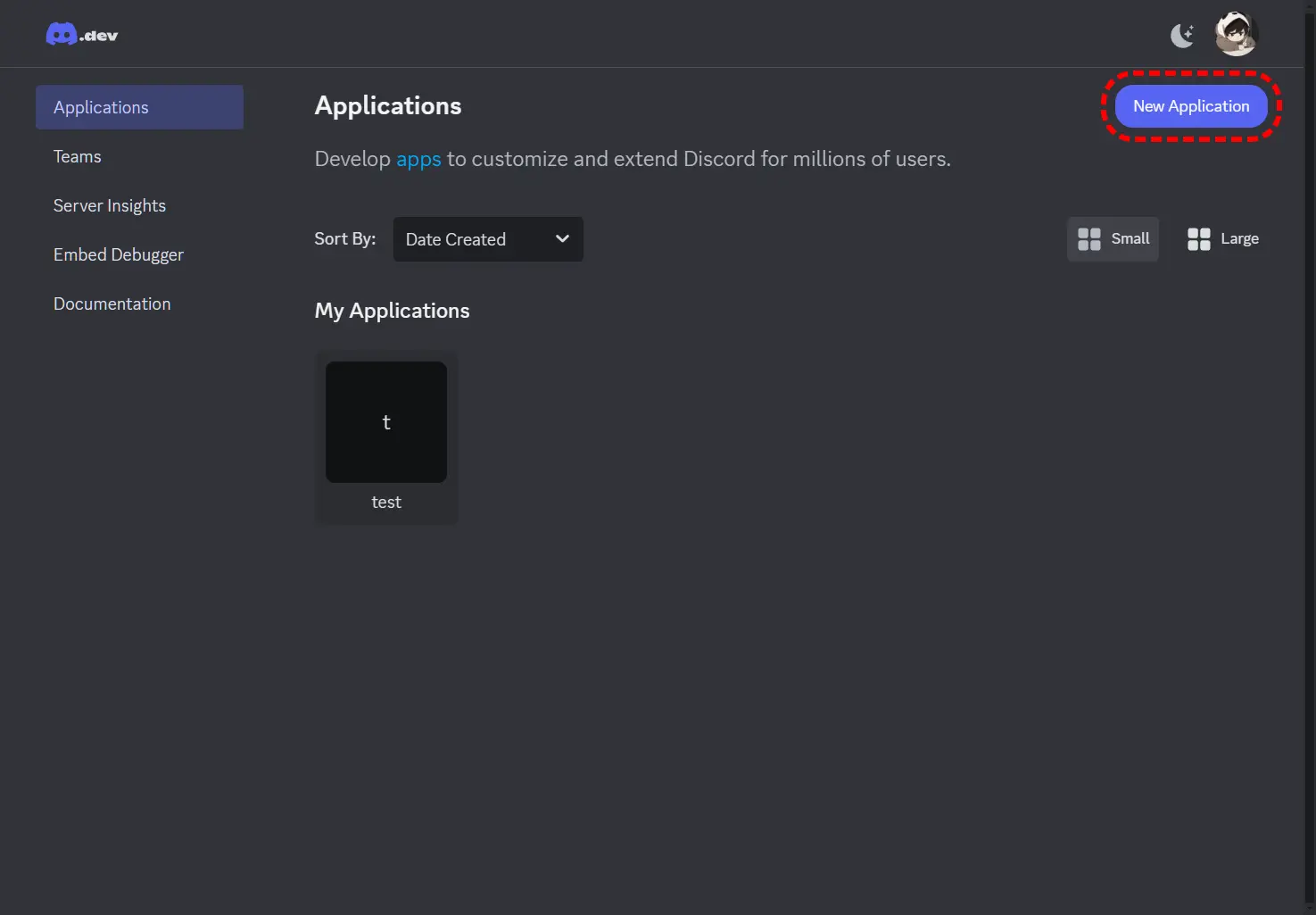
Start by creating the Discord application that will become your RestoreBase bot.
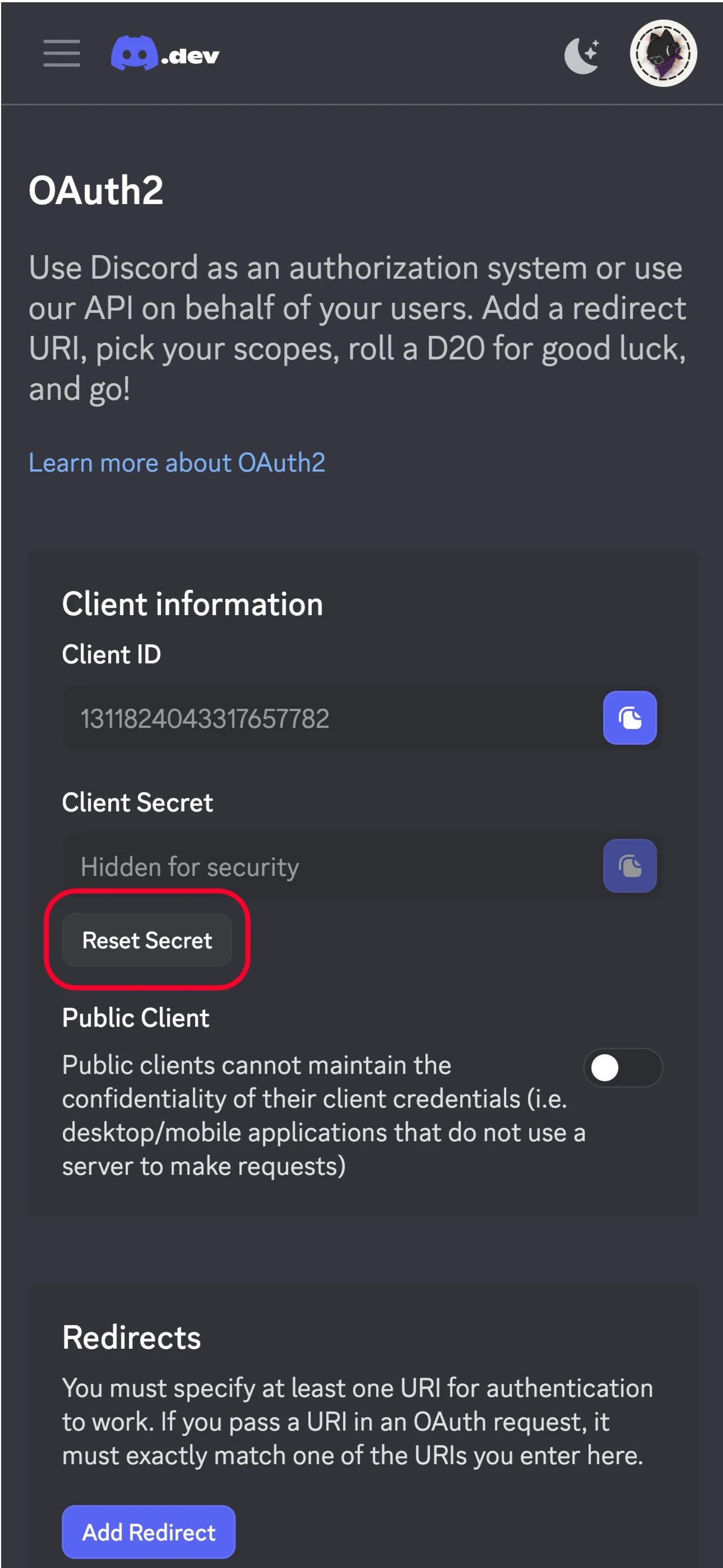
You will come back to this area to copy the Client Secret and, if needed, the Application ID / Client ID.
Step 2: Create The Bot
- Open the Bot tab.
- Create the bot user if it does not exist yet.
- Copy the bot token.
- Keep the bot role above the role you want RestoreBase to assign after verification.
RestoreBase uses this bot for verification delivery, verified role assignment, slash commands, security workflows, and continuity actions.
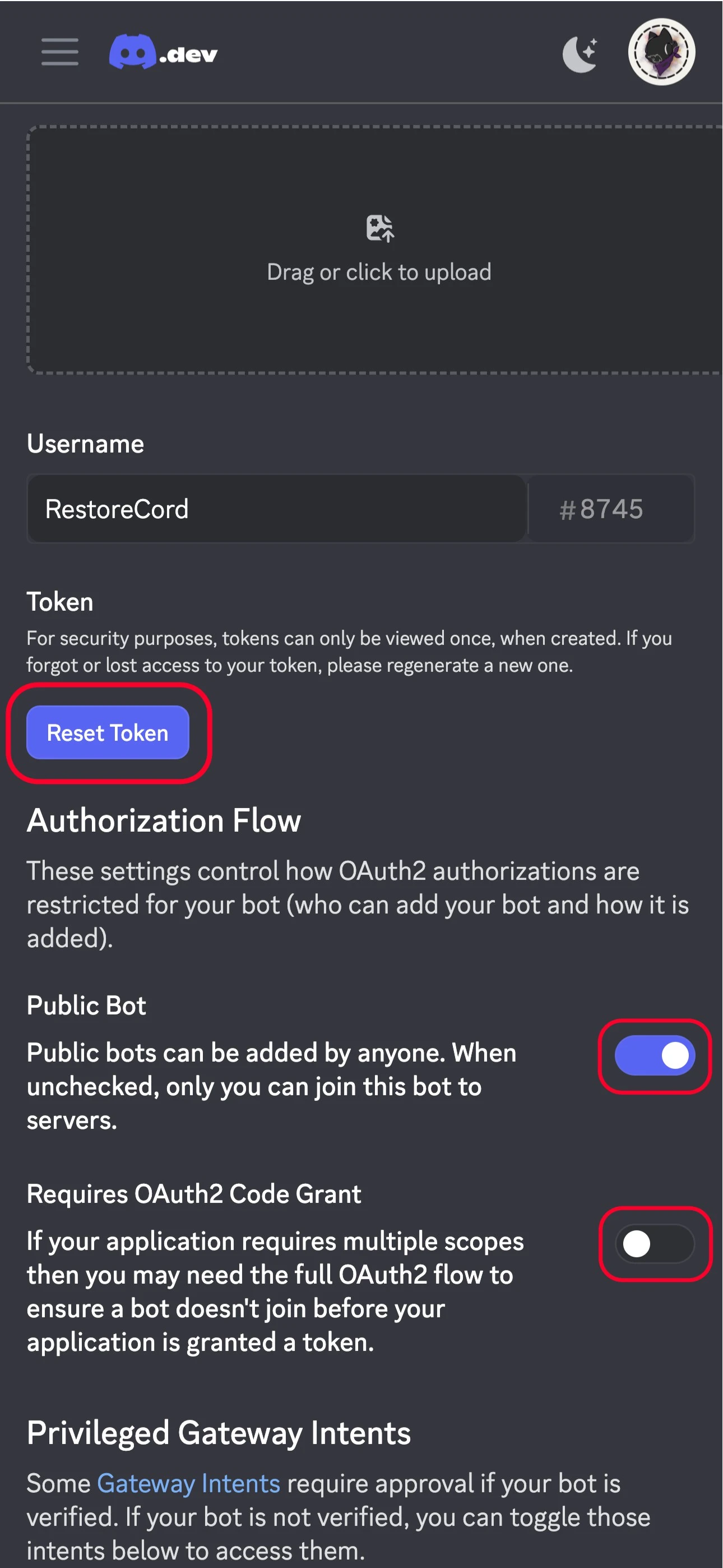
Copy the bot token from the Bot tab, then paste that same value into RestoreBase on /custom-bots.
Step 3: Invite The Bot
Use an install URL like this:
https://discord.com/oauth2/authorize?client_id=YOUR_CLIENT_ID&scope=bot%20applications.commands&permissions=8Make sure the bot lands in the exact server you want to protect, keeps Administrator permissions, and that its role sits above the verified role or any role RestoreBase may need to re-apply during continuity actions.
Step 4: Save The Same Details In RestoreBase
Return to /custom-bots in the dashboard and save the same:
- application ID
- client secret
- bot token
- redirect URI
RestoreBase must have the exact redirect URI that you configured in Discord.
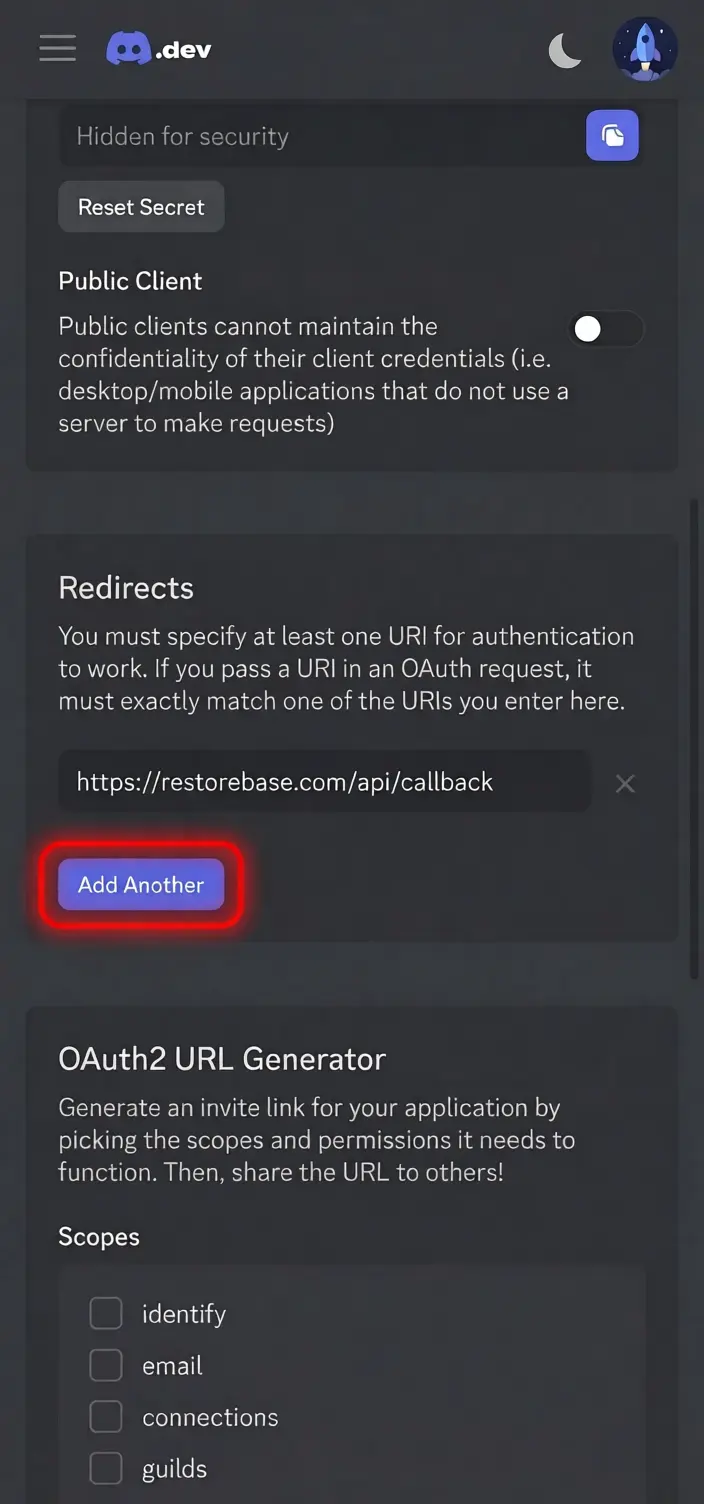
The redirect URL in Discord must exactly match the redirect URI you save in RestoreBase.
Step 5: Attach The Server On /servers
Open /servers and attach the server the bot can already see.
If the guild list is empty:
- confirm the bot was invited successfully
- confirm the saved token belongs to the same bot
- wait a moment, then refresh
/servers - if it still does not appear, contact support with the bot ID and guild ID
Step 6: Check The Command Set
Slash commands are a secondary operations surface. The dashboard is still the main setup and management path.
Once the bot is connected, RestoreBase can expose commands such as:
/warn/mute/lock/role/welcome/giveaway/remindme/modules
The full registered command surface is documented in Slash Commands.