
Module Setup
Verification
Configure the RestoreBase member verification flow, verified role, policy checks, and live OAuth test.
Open /modules/verification or /verification.
Use this after Workspace Setup, once a bot lane and Discord server are attached.
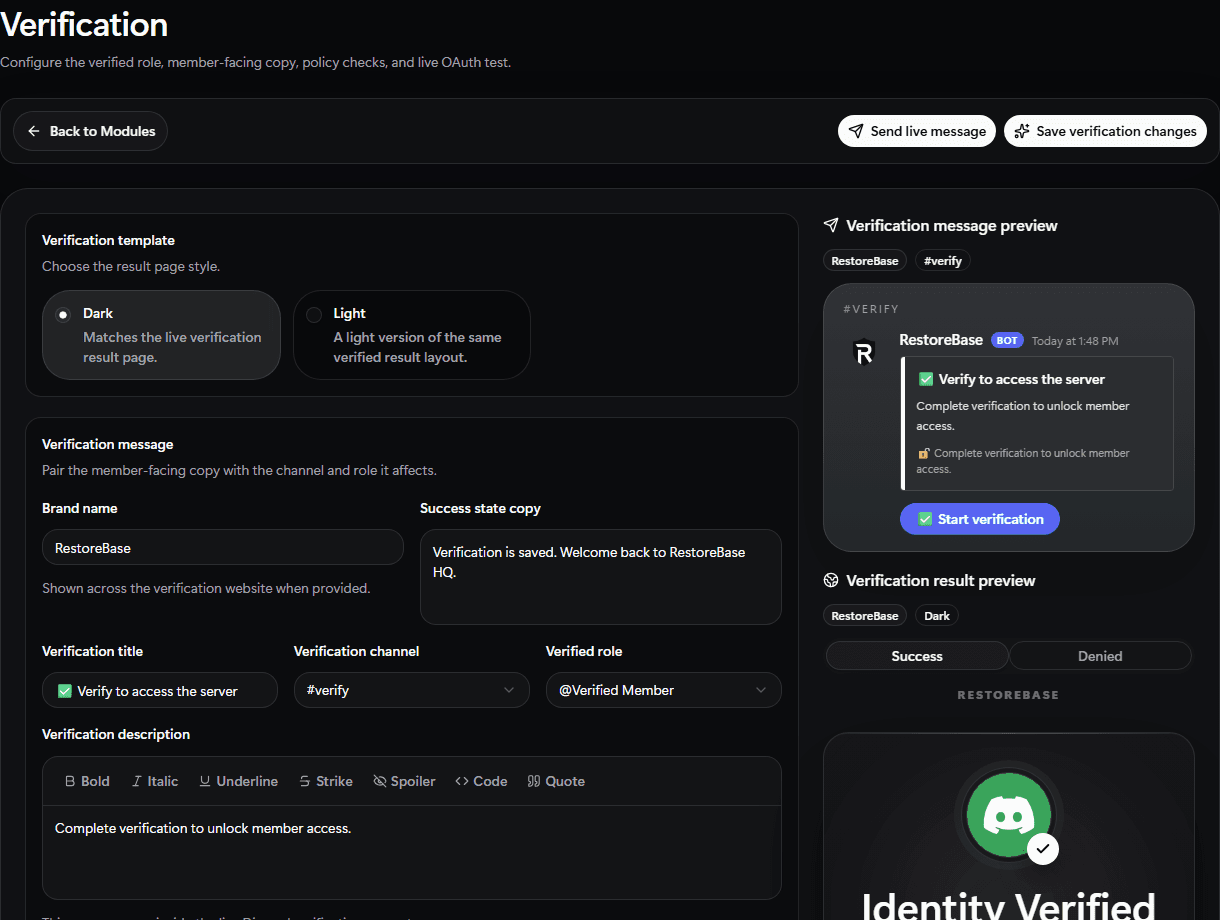
Use the verification screen to pick the channel, verified role, member-facing copy, and success state before publishing.
Set Up
- Choose the verification channel.
- Choose the verified role.
- Write the verification title, description, button label, and success message.
- Configure account-age, VPN/proxy, private mode, or challenge checks if needed.
- Publish the verification message.
- Complete one live OAuth test with a real Discord account.
- Confirm the member appears in
/members.
Validate
The test account should receive the verified role and appear in the verified roster.